


Trigonometry for Game Programming: Part 1/2
Learn Trigonometry for Game Programming in this 2-part tutorial series, where you’ll learn the theory and then practice by making a space shooter game! By Matthijs Hollemans.
Adding Health Bars... That Move!
Soon the player will be able to fire missiles at the cannon, and the cannon will be able to inflict damage on the player. To show the amount of hit points each object has remaining, you will add health bars to the scene using CCDrawNode, a new feature of Cocos2D v2.1.
First, you have to do some prep. Add a couple of new constants to the top of the file:
const int MaxHP = 100;
const float HealthBarWidth = 40.0f;
const float HealthBarHeight = 4.0f;
Also add a couple of new instance variables in the implementation block:
@implementation HelloWorldLayer
{
    ...
    int _playerHP;
    int _cannonHP;
    CCDrawNode *_playerHealthBar;
    CCDrawNode *_cannonHealthBar;
}
Add the following to the bottom of init to set up these new variables:
_playerHealthBar = [[CCDrawNode alloc] init];
_playerHealthBar.contentSize = CGSizeMake(HealthBarWidth, HealthBarHeight);
[self addChild:_playerHealthBar];

_cannonHealthBar = [[CCDrawNode alloc] init];
_cannonHealthBar.contentSize = CGSizeMake(HealthBarWidth, HealthBarHeight);
[self addChild:_cannonHealthBar];

_cannonHealthBar.position = ccp(
    _cannonSprite.position.x - HealthBarWidth/2.0f + 0.5f,
    _cannonSprite.position.y - _cannonSprite.contentSize.height/2.0f - 10.0f + 0.5f);

_playerHP = MaxHP;
_cannonHP = MaxHP;
The _playerHealthBar and _cannonHealthBar objects are instances of CCDrawNode, which is like a sprite except that you can draw arbitrary shapes into it. That is ideal for your health bars, which consist of a border and a filled rectangle.
Note that you placed the _cannonHealthBar sprite slightly below the cannon, but didn’t assign a position to the _playerHealthBar yet. That’s because the cannon never moves, so you can simply set the position of its health bar once and forget about it.
However, whenever the spaceship moves, you have to adjust the position of the _playerHealthBar as well. That happens in updatePlayer. Add the following lines to the bottom of that method:
_playerHealthBar.position = ccp(
    _playerSprite.position.x - HealthBarWidth/2.0f + 0.5f,
    _playerSprite.position.y - _playerSprite.contentSize.height/2.0f - 15.0f + 0.5f);
Now all that's left is drawing the bars themselves. Add this new method to the bottom of the file:
- (void)drawHealthBar:(CCDrawNode *)node hp:(int)hp
{
    [node clear];

    CGPoint verts[4];
    verts[0] = ccp(0.0f, 0.0f);
    verts[1] = ccp(0.0f, HealthBarHeight - 1.0f);
    verts[2] = ccp(HealthBarWidth - 1.0f, HealthBarHeight - 1.0f);
    verts[3] = ccp(HealthBarWidth - 1.0f, 0.0f);

    ccColor4F clearColor = ccc4f(0.0f, 0.0f, 0.0f, 0.0f);
    ccColor4F fillColor = ccc4f(113.0f/255.0f, 202.0f/255.0f, 53.0f/255.0f, 1.0f);
    ccColor4F borderColor = ccc4f(35.0f/255.0f, 28.0f/255.0f, 40.0f/255.0f, 1.0f);

    [node drawPolyWithVerts:verts count:4 fillColor:clearColor borderWidth:1.0f borderColor:borderColor];

    verts[0].x += 0.5f;
    verts[0].y += 0.5f;
    verts[1].x += 0.5f;
    verts[1].y -= 0.5f;
    verts[2].x = (HealthBarWidth - 2.0f)*hp/MaxHP + 0.5f;
    verts[2].y -= 0.5f;
    verts[3].x = verts[2].x;
    verts[3].y += 0.5f;

    [node drawPolyWithVerts:verts count:4 fillColor:fillColor borderWidth:0.0f borderColor:clearColor];
}
This sets up an array of points for the corners of the rectangle that you'll be drawing, then draws it twice: once for the border, which always has the same size, and once for the amount of health, which changes depending on the number of remaining hit points.
Of course, you need to call this method, once for the player and once for the cannon. Add these two lines to update:
[self drawHealthBar:_playerHealthBar hp:_playerHP];
[self drawHealthBar:_cannonHealthBar hp:_cannonHP];
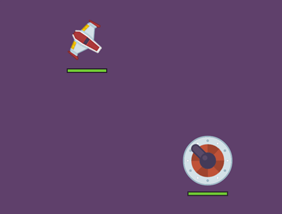
Build and run. Now both the player and the enemy have health bars:
Using Trig for Collision Detection
Right now, the spaceship can fly directly over the cannon without consequence. It would be more fun if it didn't have it so easy and instead suffered damage for colliding with the cannon. This is where this tutorial enters the sphere of collision detection (don't miss that pun).
At this point, a lot of game devs think, “I need a physics engine!” and reach for Box2D. While it’s certainly true that you can use Box2D for this, it’s not that hard to do collision detection yourself, especially when you can use circles.
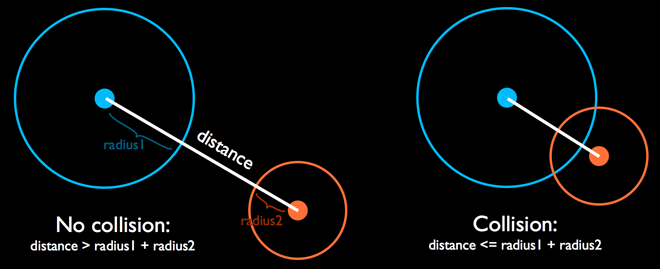
Detecting whether two circles intersect is a piece of cake: all you have to do is look at the distance between them (*cough* Pythagoras) and see if it is smaller than the radius of both circles.
Add two new constants to the top of HelloWorldLayer.m:
const float CannonCollisionRadius = 20.0f;
const float PlayerCollisionRadius = 10.0f;
These are the sizes of the collision circles around the cannon and the player. Looking at the sprite, you’ll see that the radius of the cannon is slightly larger at 25 points, but it’s nice to have a bit of wiggle room. You don’t want your games to be too unforgiving or players will think it is unfair.
The fact that the spaceship isn’t circular at all shouldn’t deter you. Often a circle is a good enough approximation of the shape of your sprite, and it has the big advantage that it makes it easy to do the necessary calculations. In this case, the body of the ship is roughly 20 points in diameter (remember, the diameter is twice the radius).
Add a new method that does the collision detection:
- (void)checkCollisionOfPlayerWithCannon
{
    float deltaX = _playerSprite.position.x - _turretSprite.position.x;
    float deltaY = _playerSprite.position.y - _turretSprite.position.y;

    float distance = sqrtf(deltaX*deltaX + deltaY*deltaY);

    if (distance <= CannonCollisionRadius + PlayerCollisionRadius)
    {
        [[SimpleAudioEngine sharedEngine] playEffect:@"Collision.wav"];
    }
}
You’ve seen how this works before: first you calculate the distance between the x-positions of the two sprites, then the y-distance. With these two values, you can calculate the hypotenuse, which is the true distance between these sprites. If that distance is smaller than the collision circles, a sound effect is played.
In update, add a call to this new method, above the calls to drawHealthBar:
[self checkCollisionOfPlayerWithCannon];
Also add this line to init to pre-load the sound effect:
[[SimpleAudioEngine sharedEngine] preloadEffect:@"Collision.wav"];
Give it a whirl and drive the spaceship into the cannon.

Notice that the sound effect is a little odd. It’s because while the spaceship flies over the cannon, the game registers repeated collisions, one after another. There isn’t just one collision, there are many, and it plays the sound effect for every one of them.
Collision detection is only the first step. The second step is collision response. Not only do you want to play a sound effect, but you also want the spaceship to bounce off the cannon.
Add these lines inside the if statement in checkCollisionOfPlayerWithCannon:
const float CannonCollisionDamping = 0.8f;
_playerAccelX = -_playerAccelX * CannonCollisionDamping;
_playerSpeedX = -_playerSpeedX * CannonCollisionDamping;
_playerAccelY = -_playerAccelY * CannonCollisionDamping;
_playerSpeedY = -_playerSpeedY * CannonCollisionDamping;
This is similar to what you did for making the spaceship bounce off the screen borders. Build and run to see how it works.

It works pretty well when the spaceship is going fast when it hits the cannon. But if it's moving too slow, then even after reversing the speed, the ship stays within the collision radius and never makes its way out of it. So this solution has some problems.
Instead of bouncing the ship off the cannon by reversing its existing speed, you will simply expel the ship with a fixed speed so that it always moves outside of the collision area, no matter how fast or slow it was flying when it hit the cannon.
This requires you to add a new constant at the top of HelloWorldLayer.m:
const float CannonCollisionSpeed = 200.0f;
Remove those lines you just added in checkCollisionOfPlayerWithCannon and replace them with the following:
float angle = atan2f(deltaY, deltaX);

_playerSpeedX = cosf(angle) * CannonCollisionSpeed;
_playerSpeedY = sinf(angle) * CannonCollisionSpeed;
_playerAccelX = 0.0f;
_playerAccelY = 0.0f;

_playerHP = MAX(0, _playerHP - 20);
_cannonHP = MAX(0, _cannonHP - 5);
That is the speed you want the spaceship to have after it collides with the cannon. You need to calculate how much of that speed goes in the x-direction and how much in the y-direction, based on the angle of impact:

You can calculate the angle using arctan because you know the current speed of the player. To calculate how fast the player bounces off the cannon in the x- and y-directions, you already have two pieces of information: the angle that you just calculated, and the new speed, CannonCollisionSpeed, which is the hypotenuse of the triangle.
If you look back at the theory section, you will see that you can calculate the new x-component of the speed using the cosine function and the y-component using the sine function:
- new x-speed = cos(angle) * hypotenuse
- new y-speed = sin(angle) * hypotenuse
And that’s exactly what you're doing in the code above. Build and run, and you'll see the spaceship now bounces properly off the cannon and loses some hit points in the process.