


Trigonometry for Game Programming: Part 1/2
Learn Trigonometry for Game Programming in this 2-part tutorial series, where you’ll learn the theory and then practice by making a space shooter game! By Matthijs Hollemans.
Begin the Trigonometry!
If you skipped ahead to this section, here is the starter project at this point. Build and run it on your device – you’ll see there’s a spaceship that you can move around with the accelerometer.
You haven’t seen any trigonometry yet, so let’s put some into action.
Note: If you’ve used Cocos2D before, you might know Cocos2D comes with handy built-in methods like ccpLength, ccpAngle, and more that are wrappers over the raw trigonometry functions for ease of use. In this tutorial, you will not be using these functions – instead you will be going low level and issuing the raw trigonometry calls yourself, for the learning experience. In an actual game, you might want to use the wrapper methods however.
Note: If you’ve used Cocos2D before, you might know Cocos2D comes with handy built-in methods like ccpLength, ccpAngle, and more that are wrappers over the raw trigonometry functions for ease of use. In this tutorial, you will not be using these functions – instead you will be going low level and issuing the raw trigonometry calls yourself, for the learning experience. In an actual game, you might want to use the wrapper methods however.
It would be cool – and much less confusing to the player! – to rotate the spaceship in the direction it is currently moving rather than having it always pointing upward.
To rotate the spaceship, you need to know the angle to rotate it. But you don’t know what that is, so how can you figure that out?
Let’s think about what you do know. You do have the player’s speed, which consists of two components: a speed in the x-direction and a speed in the y-direction:
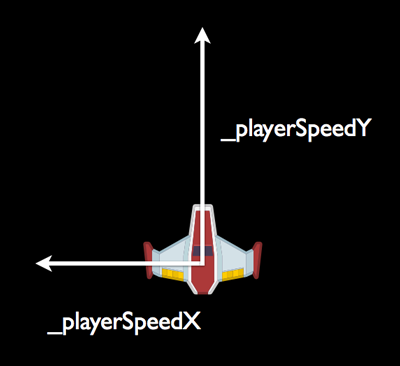
If you rearrange these a little, you can see that they form a triangle:
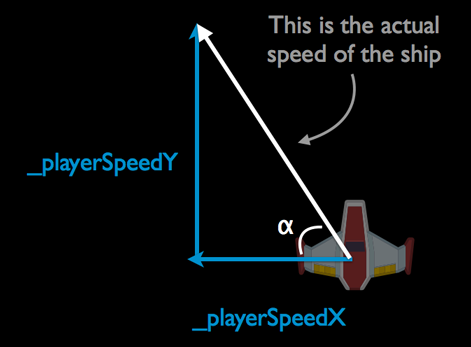
Here you know the lengths of the adjacent (_playerSpeedX) and the opposite (_playerSpeedY) sides.
So basically, you know 2 sides of a right triangle, so you are in the Know 2 Sides, Need Angle case mentioned in the beginning of this tutorial. That means you need to use one of the inverse functions: arcsin, arccos or arctan.
You know the opposite and adjacent sides, so you want to use the arctan function to find the angle to rotate the ship. Remember, that looks like the following:
angle = arctan(opposite / adjacent)
The Objective-C math library comes with the atan() function that computes the arc tangent, but it has one big issue: what if the x-speed is 0? In that case, the adjacent is 0 and dividing by 0 is mathematically undefined. Your app might crash or just behave weirdly when that happens.
Instead of using atan(), it is better to use the function atan2(), which takes two parameters and correctly handles the division-by-zero scenario without you having to worry about it:
angle = atan2(opposite, adjacent)
Important: The angle that atan2f() gives you is not the inner angle inside the triangle, but the angle that the hypotenuse makes with that 0-degree line:

This is another reason why atan2() is a lot more useful than plain, old atan().
So let’s give that a shot. Add the following two lines to the bottom of updatePlayer:
float angle = atan2f(_playerSpeedY, _playerSpeedX);
_playerSprite.rotation = angle;
Note that the arctan function you are using is actually called atan2f() instead of just atan2(). More about that in a moment. Also notice that the y-coordinate goes first. A common mistake is to write atan2f(x, y) but that’s the wrong way around. Remember the first parameter is the opposite, and in this case the Y coordinate is the opposite.
Build and run the app to try it out:

Hmm, this doesn’t seem to be working quite right. What is wrong here?
Radians vs. Degrees
Normal human beings tend to think of angles as values between 0 and 360. Mathematicians, however, measure angles in radians, which are expressed in terms of π (the Greek letter Pi, which sounds like pie but doesn’t taste as good).
It’s not essential to understand, but if you’re curious, one radian is the angle you get when you travel the distance of the radius along the arc of the circle. You can do that 2π times (roughly 6.28 times) before you end up at the beginning of the circle again.
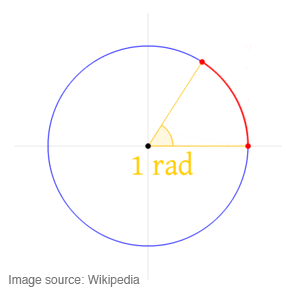
So while you may think of angles as values from 0 to 360, a mathematician sees values from 0 to 2π. And that’s where your problem lies. atan2f() returns a value in radians but Cocos2D’s sprite rotation property expects degrees. That’s why you only saw the sprite rotate a little: angles measured in radians are much smaller than angles measured in degrees.
Fortunately, it is easy to convert from one to the other. Change the line that sets _playerSprite.rotation to:
_playerSprite.rotation = CC_RADIANS_TO_DEGREES(angle);
The CC_RADIANS_TO_DEGREES macro is Cocos2D’s way of doing the conversion but you can easily write your own function or macro to do this. I don’t have these formulas memorized but they are easy enough to derive yourself when you realize than an angle of 360 degrees corresponds to 2π:
Angle in degrees / 360 degrees = Angle in radians / 2π radians
To go from radians to degrees, the formula becomes:
Angle in degrees = (Angle in radians / 2π) * 360
And the other way around, from degrees to radians:
Angle in radians = (Angle in degrees / 360) * 2π
I point this out because forgetting to convert between radians and degrees is probably the most common mistake programmers make when they are dealing with trigonometry! So if you don’t see the rotation you expected, make sure you’re not mixing up your degrees and radians…
So what the @#! is π? Pi is the ratio of the circumference of a circle to its diameter. In other words, if you measure the outside of any circle and divide it by its diameter (which is twice the radius), you get the number 3.141592… and that is what we call π. It takes 2π radians to go all the way around a circle, which is why 360 degrees corresponds to 2π. Pi is a very important concept in mathematics that shows up all the time, especially with anything that is cyclical.
By the way, not everyone likes π. Some people believe that it would have been better to choose the ratio of the circumference to the radius, instead of to the diameter. This number is called tau (τ) and is equal to 2π, thus simplifying many of the calculations. You can read more about tau at tauday.com.
So what the @#! is π? Pi is the ratio of the circumference of a circle to its diameter. In other words, if you measure the outside of any circle and divide it by its diameter (which is twice the radius), you get the number 3.141592… and that is what we call π. It takes 2π radians to go all the way around a circle, which is why 360 degrees corresponds to 2π. Pi is a very important concept in mathematics that shows up all the time, especially with anything that is cyclical.
By the way, not everyone likes π. Some people believe that it would have been better to choose the ratio of the circumference to the radius, instead of to the diameter. This number is called tau (τ) and is equal to 2π, thus simplifying many of the calculations. You can read more about tau at tauday.com.
Anyway, back to the game. Build and run to see some glorious rotation in action.

Whoops, something is still not right. The spaceship certainly rotates but it seems to be pointing in the direction opposite to where it’s flying!
Here’s what’s happening: the sprite for the spaceship points straight up, which corresponds to the default rotation value of 0 degrees. But in mathematics, an angle of 0 degrees (or radians) doesn’t point upward, but to the right:

And that’s not the only problem: in Cocos2D, rotation happens in a clockwise direction, but in mathematics it goes counterclockwise.
To overcome these differences, change the line to:
_playerSprite.rotation = 90.0f - CC_RADIANS_TO_DEGREES(angle);
This adds 90 degrees to make the sprite point to the right at an angle of 0 degrees, so that it lines up with the way atan2f() does things. Then it adds the negative angle – in other words, subtracts the angle – in order to rotate the proper way around.
Build and run once more to try it out. You’ll finally have a spaceship that has its head on straight!
