


Trigonometry for Game Programming – SpriteKit and Swift Tutorial: Part 1/2
Learn trigonometry for game programming using SpriteKit and Swift. You will learn the theory and then practice using trigonometry by making a space shooter game! By Bill Morefield.
Bouncing Off the Walls
You have a spaceship that you can move using the accelerometers. You’re using trig to make it point in the direction it’s heading.
Having the spaceship get stuck on the edges of the screen isn’t very satisfying, and you’re going to fix that by making it bounce off the screen borders instead!
First, delete these lines from updatePlayer(_:):
newX = min(size.width, max(0, newX))
newY = min(size.height, max(0, newY))
And replace them with the following:
var collidedWithVerticalBorder = false
var collidedWithHorizontalBorder = false

if newX < 0 {
  newX = 0
  collidedWithVerticalBorder = true
} else if newX > size.width {
  newX = size.width
  collidedWithVerticalBorder = true
}

if newY < 0 {
  newY = 0
  collidedWithHorizontalBorder = true
} else if newY > size.height {
  newY = size.height
  collidedWithHorizontalBorder = true
}
This checks whether the spaceship hit any of the screen borders, and if so, sets a Bool variable to true. But what to do after such a collision takes place? To make the spaceship bounce off the border you reverse its velocity and acceleration.
Add the following lines to updatePlayer(_:), directly below the code you just added:
if collidedWithVerticalBorder {
  playerAcceleration.dx = -playerAcceleration.dx
  playerVelocity.dx = -playerVelocity.dx
  playerAcceleration.dy = playerAcceleration.dy
  playerVelocity.dy = playerVelocity.dy
}

if collidedWithHorizontalBorder {
  playerAcceleration.dx = playerAcceleration.dx
  playerVelocity.dx = playerVelocity.dx
  playerAcceleration.dy = -playerAcceleration.dy
  playerVelocity.dy = -playerVelocity.dy
}
If a collision is registered, you invert the acceleration and velocity values, causing the ship to bounce away again.
Build and run to try it out.
The bouncing works, but it seems a bit energetic. The problem is that you wouldn’t expect a spaceship to bounce like a rubber ball — it should lose most of its energy upon collision, and bounce off with less velocity than it had beforehand.
Add another constant right beneath let maxPlayerSpeed: CGFloat = 200:
let bordercollisionDamping: CGFloat = 0.4
Now, replace the code you just added to updatePlayer(_:) with the following:
if collidedWithVerticalBorder {
  playerAcceleration.dx = -playerAcceleration.dx * bordercollisionDamping
  playerVelocity.dx = -playerVelocity.dx * bordercollisionDamping
  playerAcceleration.dy = playerAcceleration.dy * bordercollisionDamping
  playerVelocity.dy = playerVelocity.dy * bordercollisionDamping
}

if collidedWithHorizontalBorder {
  playerAcceleration.dx = playerAcceleration.dx * bordercollisionDamping
  playerVelocity.dx = playerVelocity.dx * bordercollisionDamping
  playerAcceleration.dy = -playerAcceleration.dy * bordercollisionDamping
  playerVelocity.dy = -playerVelocity.dy * bordercollisionDamping
}
You’re now mutliplying the acceleration and velocity by a damping value, bordercollisionDamping. This allows you to control how much energy is lost in the collision. In this case, you make the spaceship retain only 40% of its speed after bumping into the screen edges.
For fun, play with the value of bordercollisionDamping to see the effect of different values for this constant. If you make it larger than 1.0, the spaceship actually gains energy from the collision!
You may have noticed a slight problem: Keep the spaceship aimed at the bottom of the screen so that it continues smashing into the border over and over, and you’ll see that it starts to stutter between pointing up and pointing down.
Using the arc tangent to find the angle between a pair of X and Y components works well only if those X and Y values are fairly large. In this case, the damping factor has reduced the speed to almost zero. When you apply atan2(_:_:) to very small values, even a tiny change in these values can result in a big change in the resulting angle.
One way to fix this is to not change the angle when the speed is very slow. That sounds like an excellent reason to give a call to your old friend, Pythagoras.
Right now you don’t actually store the ship’s speed. Instead, you store the velocity, which is the vector equivalent (see here for an explanation of the difference between speed and velocity), with one component in the X-direction and one in the Y-direction. But in order to draw any conclusions about the ship’s speed (such as whether it’s too slow to be worth rotating the ship) you need to combine these X and Y speed components into a single scalar value.

Here you are in the Know 2 Sides, Need Remaining Side case, discussed earlier.
As you can see, the true speed of the spaceship — how many points it moves across the screen per second — is the hypotenuse of the triangle that is formed by the speed in the X-direction and the speed in the Y-direction.
Put in terms of the Pythagorean formula:
true speed = √(playerVelocity.dx2 + playerVelocity.dy2)
Remove this block of code from updatePlayer(_:):
let angle = atan2(playerVelocity.dy, playerVelocity.dx)
playerSprite.zRotation = angle - 90 * degreesToRadians
And replace it with this:
let rotationThreshold: CGFloat = 40

let speed = sqrt(playerVelocity.dx * playerVelocity.dx + playerVelocity.dy * playerVelocity.dy)
if speed > rotationThreshold {
  let angle = atan2(playerVelocity.dy, playerVelocity.dx)
  playerSprite.zRotation = angle - 90 * degreesToRadians
}
Build and run. You’ll see the spaceship rotation seems a lot more stable at the edges of the screen. If you’re wondering where the value 40 came from, the answer is: experimentation. Putting print() statements into the code to look at the speeds at which the craft typically hit the borders has helped tweak this value until it felt right :]
Blending Angles for Smooth Rotation
Of course, fixing one thing breaks something else. Try slowing down the spaceship until it has stopped, then flip the device so the spaceship has to turn around and fly the other way.
Previously, that would happen with a nice animation where you actually saw the ship turning. But because you just added some code that prevents the ship from changing its angle at low speeds, the turn is now very abrupt. It’s a small detail, but it’s these details that make great apps and games.
The fix is to not switch to the new angle immediately, but to gradually blend it with the previous angle over a series of successive frames. This re-introduces the turning animation while preventing the ship from rotating when it is not moving fast enough.
This “blending” sounds fancy, but it’s actually quite easy to implement. It will require you to keep track of the spaceship’s angle between updates. Add the following property in the GameScene class:
var playerAngle: CGFloat = 0
Replace the lines of code starting from rotationThreshold declaration to the end of the last if statement in updatePlayer(_:) to the following:
let rotationThreshold: CGFloat = 40
let rotationBlendFactor: CGFloat = 0.2

let speed = sqrt(playerVelocity.dx * playerVelocity.dx + playerVelocity.dy * playerVelocity.dy)
if speed > rotationThreshold {
  let angle = atan2(playerVelocity.dy, playerVelocity.dx)
  playerAngle = angle * rotationBlendFactor + playerAngle * (1 - rotationBlendFactor)
  playerSprite.zRotation = playerAngle - 90 * degreesToRadians
}
The playerAngle combines the new angle and its previous angle by multiplying them with a blend factor. In other words, the new angle only contributes 20% towards the actual rotation that you set on the spaceship. Over time, more new angles get added and the spaceship eventually points in the direction it is heading.
Build and run to verify that there is no longer an abrupt change from one rotation angle to another.

Now try flying in a circle, both clockwise and counterclockwise. You’ll notice that at some point in the turn, the spaceship suddenly spins 360 degrees in the opposite direction. It always happens at the same point in the circle. What’s going on?
The atan2(_:_:) returns and angle between +π and –π (between +180 and -180 degrees). That means that if the current angle is very close +π, and then it turns a little further, it’s going to wrap around to -π (or vice-versa).
That’s actually equivalent to the same position on the circle (just like -180 and +180 degrees are the same point), but your blending algorithm isn’t smart enough to realise that – it thinks the angle has jumped a whole 360 degrees (aka 2π radians) in one step, and it needs to spin the ship 360 degrees in the opposite direction to catch back up.
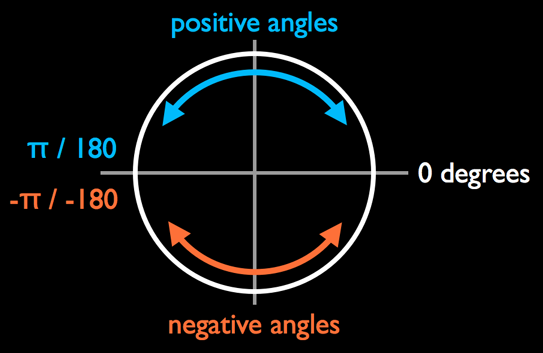
To fix it, you need to recognize when the angle crosses that threshold, and adjust playerAngle accordingly. Add a new property to the GameScene class:
var previousAngle: CGFloat = 0
Once again, replace the lines of code starting from rotationThreshold declaration to the end of the last if statement in updatePlayer(_:) to the following:
let rotationThreshold: CGFloat = 40
let rotationBlendFactor: CGFloat = 0.2

let speed = sqrt(playerVelocity.dx * playerVelocity.dx + playerVelocity.dy * playerVelocity.dy)
if speed > rotationThreshold {
  let angle = atan2(playerVelocity.dy, playerVelocity.dx)

  // did angle flip from +π to -π, or -π to +π?
  if angle - previousAngle > CGFloat.pi {
    playerAngle += 2 * CGFloat.pi
  } else if previousAngle - angle > CGFloat.pi {
    playerAngle -= 2 * CGFloat.pi
  }

  previousAngle = angle
  playerAngle = angle * rotationBlendFactor + playerAngle * (1 - rotationBlendFactor)
  playerSprite.zRotation = playerAngle - 90 * degreesToRadians
}
Now you’re checking the difference between the current angle and the previous angle to watch for changes over the thresholds of 0 and π (180 degrees). That should fix things right up.
Build and run. You should have no more problems with turning your spacecraft!