


Trigonometry for Game Programming – SpriteKit and Swift Tutorial: Part 1/2
Learn trigonometry for game programming using SpriteKit and Swift. You will learn the theory and then practice using trigonometry by making a space shooter game! By Bill Morefield.
Have Angle, Need Other Angle
Lastly, consider the angles. If you know one of the non-right angles from the triangle, then figuring out the other one is a piece of cake. In a triangle, the sum of the three angles is always 180 degrees. Because this is a right triangle, it has a 90-degree angle. That leaves:
alpha + beta + 90 = 180
Or simply:
alpha + beta = 90
The remaining two angles must add up to 90 degrees. So if you know alpha, you can calculate beta and vice-versa.
And those are all the formulae you need to know! Which one to use in practice depends on the pieces that you already have. Usually you either have the angle and at least one side length, or you don’t have the angle but you do have two side lengths.
Enough theory. Let’s put this stuff into practice.
Begin the Trigonometry!
Use the Download Materials button at the top or bottom of this tutorial to download the starter project.
The starter project is a SpriteKit project. Build and run it on an iOS device. You’ll see there’s a spaceship that you can move around with the accelerometer along with a cannon in the center of the screen. Both sprites have a full health bar beneath them.

At the moment, the spaceship does not rotate as it moves. It would be helpful to see the where the spaceship is heading as it moves rather than having it always pointing upward. To rotate the spaceship, you need to know the angle to rotate it to. But you don’t know what that is yet; you do have the velocity vector. So how can you get an angle from a vector?
Consider what you do know. The player has the X-direction velocity length and the Y-direction velocity length:

If you rearrange these a little, you can see that they form a triangle:

Here you know the adjacent (playerVelocity.dx) and the opposite (playerVelocity.dy) side lengths.
So basically, you know the 2 sides of a right triangle, and you want to find an angle (the Know 2 Sides, Need Angle case), so you need to use one of the inverse trig functions: arcsin, arccos or arctan.
The sides you know are the opposite and adjacent sides to the angle you need. Hence, you’ll want to use the arctan function to find the ship’s rotation angle. Remember, that looks like the following:
angle = arctan(opposite / adjacent)
The Swift standard library includes an atan() function that computes the arc tangent, but it has a couple of limitations. First, the x / y yields exactly the same value as -x / -y, which means that you’ll get the same angle output for opposite velocities. Second, the angle inside the triangle isn’t exactly the one you want anyway — you want the angle relative to one particular axis, which may be 90, 180 or 270 degrees offset from the angle returned by atan().
You could write a four-way if statement to work out the correct angle by taking into account the velocity signs to determine which quadrant the angle is in, and then apply the correct offset. But, there’s a much simpler way:
For this specific problem, instead of using atan(), it’s simpler to use the function atan2(_:_:), which takes the x and y components as separate parameters, and correctly determines the overall rotation angle.
angle = atan2(opposite, adjacent)
Add the following code to the end of updatePlayer(_:) in GameScene.swift:
let angle = atan2(playerVelocity.dy, playerVelocity.dx)
playerSprite.zRotation = angle
Notice that the Y-coordinate goes first. Remember the first parameter is the opposite side. In this case, the Y coordinate lies opposite the angle you’re trying to measure.
Build and run the app to try it out:

Hmm, this doesn’t seem to be working quite right. The spaceship certainly rotates but it’s pointing in a different direction than where it’s heading!
Here’s what’s happening: the spaceship sprite image points straight up, which corresponds to the default rotation value of 0 degrees. But by mathematical convention, an angle of 0 degrees doesn’t point upward, but to the right, along the X-axis:

To fix this, subtract 90 degrees from the rotation angle:
playerSprite.zRotation = angle - 90
Try it out…
Nope! If anything, it’s even worse now! What’s missing?
Radians, Degrees and Points of Reference
Normal humans tend to think of angles as values between 0 and 360 (degrees). Mathematicians usually measure angles in radians, which are expressed in terms of π (the Greek letter Pi, which sounds like “pie” but doesn’t taste as good).
One radian is the angle you get when you travel the length of radius along the circle arc. You can do that 2π times (roughly 6.28 times) before you end up at the beginning of the circle again.
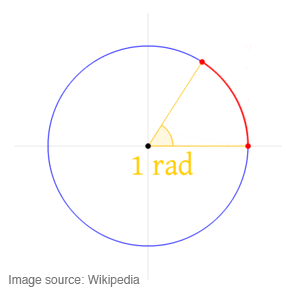
Notice the radius (straight yellow line) is the same length as the arc (red curved line). That magic angle where the two lengths are equal is one radian!
So while you may see angle values from 0 to 360, you can also see them from 0 to 2π. Most computer math functions work in radians. SpriteKit uses radians for all its angular measurements as well. The atan2(_:_:) function returns a value in radians, but you’ve tried to offset that angle by 90 degrees.
Since you will be working with both radians and degrees, it will be useful to have a way to easily convert between the two. The conversion is pretty simple. Since there are 2π radians or 360 degrees in a circle, π equates to 180 degrees. To convert radians to degrees, you divide by π and multiply by 180. To convert degrees to radians, you divide by 180 and multiply by π.
Add the following two constants above GameScene:
let degreesToRadians = CGFloat.pi / 180
let radiansToDegrees = 180 / CGFloat.pi
Finally, edit the rotation code in updatePlayer(_:) to use the degreesToRadians multiplier:
playerSprite.zRotation = angle - 90 * degreesToRadians
Build and run again. You’ll see that the spaceship finally rotates and faces the direction it is heading.