


Getting Started with Apple’s Foundation Models
Apple’s Foundation Models framework puts a large language model right on the device — private, offline, and free to call. In this free chapter from Apple Foundation Models, you’ll build a SwiftUI chat app that checks availability, sends a prompt, and displays the response, using an on-device LLM in just two lines of Swift. By Bill Morefield.
Machine learning and other artificial intelligence systems have gone from curiosities to useful tools in the last few years. While their use cases are often overhyped, the fact that they can provide clear value to your app in the right situations is clear. You can now complete tasks on a device that fits in your hand that were previously difficult or impossible, even on enterprise equipment. Only a few of these technologies have garnered the hype and controversy as Large Language Models (LLMs). A traditional LLM requires a massive amount of computational power, memory, and resources to run. Well-funded startups were the one ones able to train and run these models and deploy huge amounts of memory, storage, and computing power.
To address these high system requirements, many programmers have explored deploying local models. These models are optimized and simplified to run on the devices and equipment of everyday users. Starting with iOS 26, iPadOS 26, macOS 26, and other version 26 operating systems, Apple is providing its own local model, optimized for use in apps, called Apple Foundation Models. Apple Foundation Models are Apple’s on-device AI models, designed to protect privacy while helping with tasks like writing text, summarizing information, and organizing data on supported devices. Because all data remains on the device, you don’t need an internet connection, there is less latency, and you avoid the privacy risks that come when sending data to third-party services. This book will explore the use of Apple Foundation Models in your apps.
What is Apple Foundation Models?
It’s worth starting with the most basic question: What is Apple Foundation Models Framework? The short answer is that it is a large language model (LLM) that Apple has optimized to run locally on end-user devices, such as laptops, desktops, and mobile devices. Traditional LLMs operate in data centers equipped with high-powered GPUs, which need a lot of memory and power. Bringing that functionality to an end-user device requires significant changes to the model. In Apple’s case, the two most important changes to produce Foundation Models are reducing the number of parameters and quantizing the values that form the model. You’ll learn more about how they did that later.
In this chapter, you will develop a chat-style app that interacts with Foundation Models to explore the possibilities and limitations of this framework. A chat app isn’t a great use case for Foundation Models due to the small size of the on-device model, but it provides a well-understood app to explore integrating Apple Foundation Models into a SwiftUI app. The immediate feedback will also make it easier to explore the model’s use and limitations.
Using Foundation Models
Open the starter app in Xcode 26 or later. Run the app, and you will see the starter implements a simple chat-style interface. The textbox at the bottom of the view provides the user a place to enter text and “send” it. Right now, the chat will echo any text entered.
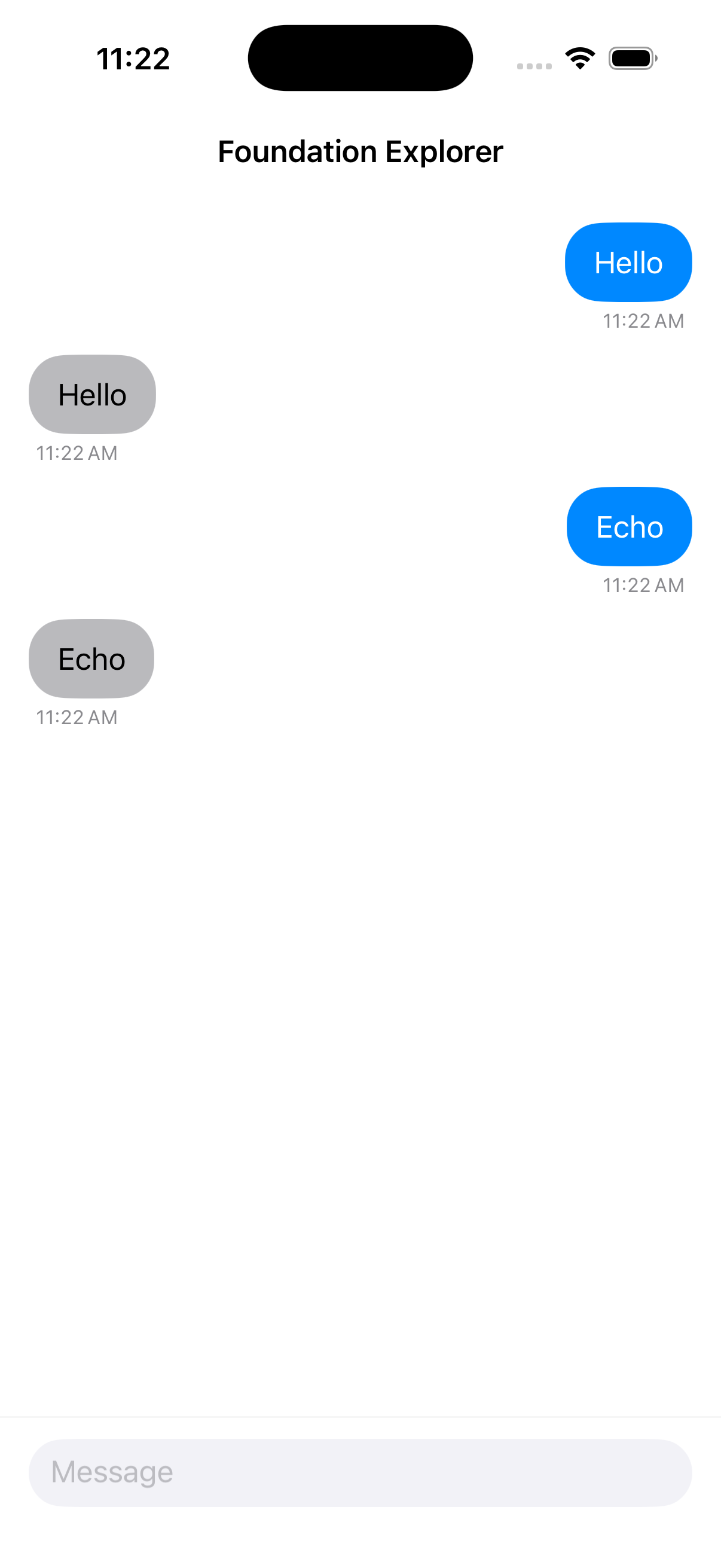
You’ll now update this app to use Apple Foundation Models. The text you send to the model is a prompt. The model will then provide a response, which the app will display to the user.
Before you try to use Foundation Models, ensure that it is available on the device. The device must support Apple Intelligence, and the user must turn it on for their device. If either of those is not done, then your app will need to disable or work around model features. So your first step is to ensure that Foundation Models are available. Currently, the app only shows the ChatView, but you will instead display a message if the device does not support Foundation Models.
Open ContentView.swift and add the following code as the last import:
import FoundationModels
To use Foundation Models in a class or view, you must first include the framework. Now add the following property to the view:
private let model = SystemLanguageModel.default
SystemLanguageModel refers to the on-device text foundation model. The default property accesses the base version of the model. You will use this to verify the status of Foundation Models. Replace the body of the view with:
switch model.availability {
case .available:
  ChatView()
case .unavailable(let reason):
  ModelUnavailableView(reason: reason)
}
ModelUnavailableView doesn’t exist yet, but you’ll take care of that next. The model.availability property reflects the state of Foundation Models on the device. It will either be available, meaning your app can access Foundation Models, or unavailable, which also provides a reason explaining why Foundation Models is not accessible. When available, you show the existing ChatView as before. But when Foundation Models is unavailable, you will display ModelUnavailableView to inform the user.
Create a new SwiftUI view named ModelUnavailableView in the Chat Views folder. Add the following to the imports at the top of the new view:
import FoundationModels
Again, you need this import in any code that interacts with Foundation Models. Next, add the following reason property to pass into the view:
var reason: SystemLanguageModel.Availability.UnavailableReason
This property holds an enumerable that explains why the model is unavailable. Your app can use this to display an appropriate message. Change the body of the view to:
Image(systemName: "apple.intelligence")
  .font(.largeTitle)
switch reason {
case .deviceNotEligible:
  Text("Apple Intelligence is not available on this device.")
case .appleIntelligenceNotEnabled:
  Text("Apple Intelligence is available, but not enabled on this device.")
case .modelNotReady:
  Text("The model isn't ready. This is usually because it is still downloading.")
@unknown default:
  Text("An unknown error prevents Apple Intelligence from working.")
}
This will display the Apple Intelligence SF Symbol along with a user-friendly text message for the most common reasons. You also provide a generic error for other cases, using @unknown default to future-proof against new enum values. This will prepare your app for any future changes to the framework. Now update the preview to:
ModelUnavailableView(reason: .appleIntelligenceNotEnabled)
This provides a reason for the preview. Viewing the Canvas will now show this default view.

Now, run your app. If your device meets the requirements described earlier, you should still be able to see the chat app. If your device doesn’t support Apple Intelligence, you will see the informational view to that effect, along with the reason. Of course, when testing your app, you will want to ensure the user either gets a successful fallback or an appropriate informational message for these error states. To test this, you can use the scheme option in XCode.