Exploring Android Accessibility Tools with TalkBack
Enabling Accessibility Tools
There are many tools people use to interact with their Android devices. These include TalkBack, Magnification, and Switch Access, to name a few.
TalkBack allows you to explore the view using gestures, while also audibly describing what’s on the screen. Magnification allows you to zoom in on parts of the screen. Both TalkBack and Magnification are helpful for people with limited visibility. People with limited mobility can use Switch Access to navigate without using the touch screen. You can find all the accessibility features in Settings/Accessibility on your device.
This lesson focuses mainly on TalkBack, as it incorporates both screen traversal for navigation and screen reading to understand what is in focus. You can enable all the accessibility tools the same way you enable TalkBack.
By using TalkBack, a user can use gestures, such as swiping left to right, to traverse the items shown on the screen. As each item receives focus, there is an audible description given. This is useful for people with vision impairments who cannot see the screen clearly enough to understand what is there or select what they need.
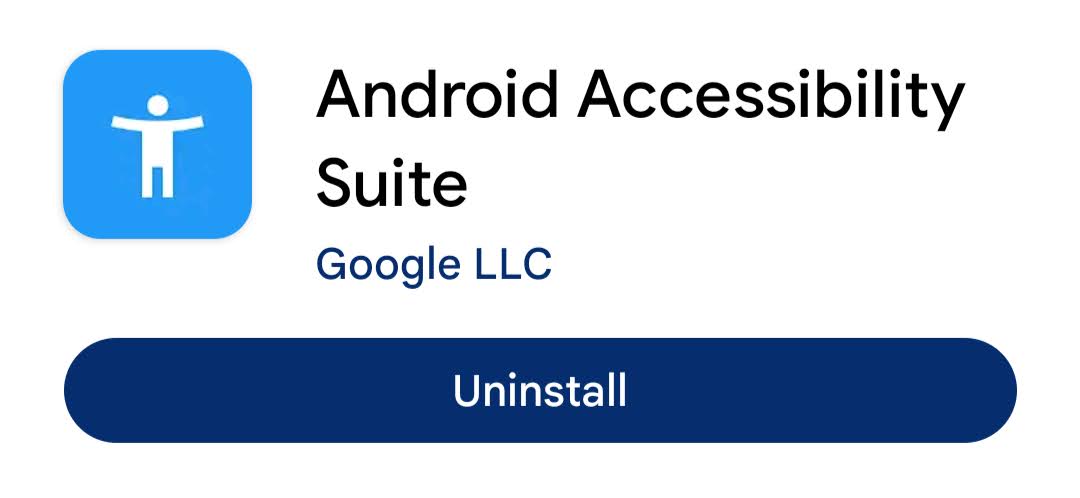
Note: When using an emulator, it likely doesn’t come with TalkBack pre-installed. In this case, ensure you’re using an emulator with the Play Store, and download Android Accessibility Suite from the Google Play Store.
Android Accessibility Suite in Play Store
To turn on TalkBack, go to Settings -> Accessibility -> TalkBack, and toggle the tool on. If this is your first time using TalkBack and a tutorial pops up, it’s a good idea to walk through it now. Don’t worry, we’ll review the basics below.
TalkBack Settings Screen
With the default settings, in a left to right language, swipe right to advance to the next item on the screen, left to go to the previous, and double tap to select. In a right to left language, the swipe directions are reversed. There are other gestures, but you’ll only need these to start. You’ll learn more as you need them.
Note: if you get stuck with TalkBack enabled, most Android devices have a default shortcut that enables and disables the service by pressing and holding both volume keys at the same time.
With these gestures, you can start exploring the application using TalkBack. Try closing your eyes while using it to see if you can understand what you’re “looking” at. Don’t be shy about trying out the other accessibility tools too. By experimenting with these tools, you’ll be able to spot things that are hard to access or understand for users with impairments.
Go ahead and try out TalkBack on the Cat Napper app before moving on.
Adding a Content Description
Did you notice that you received no information about the photos when you were using TalkBack? This is one of the first things you’ll improve in this app.
Most of the time, you’ll be adding or changing Modifiers to communicate information to accessibility services. One of the simplest, and most commonly used, is contentDescription. It’s so common that sometimes you’ll see it as a parameter to a component and not even need to add a modifier! That’s the case when using Material components. It’s often used to give meaning to an image or icon that someone might not be able to visually perceive.
There are two places where the cat’s image is shown: One in the list of cats on the Home Screen, and the other at the top of the Detail Screen.
Notice that there’s a content description, but it’s set to null. This is how you inform accessibility services that they can ignore something that isn’t important. This screen is a list of cat names, so there’s not much additional information to add here. Instead, let’s focus on the image in the Detail Screen. It looks pretty similar:
Make a change to add a contentDescription as shown below:
For cat_image_description resource, use the value “A picture of %s.”.
Build and run the app. Check out your changes using TalkBack to see how you now get a description when traversing the image.
Note: Import all the necessary dependencies before running the app.
Cat Image Description - A picture of Bella
Note: In these screenshots you’ll see two things you might not expect. First, there’s a green border around the currently selected item. Second, there’s a box at the bottom with the text of what TalkBack is reading aloud.
While you’re there, check out the rest of the screen. If you hadn’t noticed, there’s a heart icon that’s supposed to indicate whether the cat is a favorite—but right now it always says the same thing. Time to fix that!
Unchecked favorite icon reads: Favorite image
On the Detail Screen, find the Icon that shows the favorite state and update the contentDescription as follows:
Icon(
  imageVector = if (cat.isFavorite) Icons.Filled.Favorite else Icons.Filled.FavoriteBorder,
  contentDescription = stringResource(
    id =
      if (cat.isFavorite) R.string.detail_favorite_label
      else R.string.detail_not_favorite_label
  )
)
Use “Not favorite” for the value of the string resource detail_not_favorite_label.
Build and run the app to observe your changes!
Unchecked favorite icon reads: Not favorite
Congratulations, you curious cat! You’ve made this app that much more accessible. If you’re testing with TalkBack, turn it on now to experience the difference your changes made.
Using Content Descriptions in Other Contexts
Now, you may come across a situation where you don’t have a contentDescription parameter but still need to add one. You can do that with the semantics modifier:
contentDescription is helpful, but it’s not always the best or most expressive solution. Accessibility tools provide many options so users can tailor their experience to their needs. By using more descriptive semantics, you can significantly improve that experience—and you may already be using many of them without realizing it.
Take clickable, for example. By using this modifier over a lower level touch handler, you add some information to the semantics tree. It adds information that you can perform an action with the component and tells accessibility services how to perform those actions.
But there’s more! Have you ever noticed that there’s a clickLabel parameter on the modifier? You can use this to make it more specific what will happen when that action is triggered. Take the items on the home screen. Let’s edit it in three different ways so you can compare the behavior with and without a label. Get TalkBack ready so you can hear the result.
Find the clickable modifier in HomeScreen.kt. First, observe the current implementation.
Item reads double-tap to activate
Then, replace the clickable modifier with this pointerInput modifier.
Build and run this change and see how much the clickable modifier does for you. There’s no longer any indication that you can perform an action on this item.
Item reads Leo
Now, update it using clickable with a click label:
Now, instead of “Double-tap to activate” it says “Double-tap to view details for Oliver”.
Item reads double-tap to view details for Oliver
See how much Jetpack Compose does for you! You can go take a cat nap while the built-in modifiers handle accessibility for you.
Getting More Specific
Interactions are a pretty important part of almost any app, so it makes sense that there are multiple ways to describe the actions in your app to provide clarity for your users. Jetpack Compose makes this easier than opening a can of wet cat food. In fact, when you’re using Material components, the design system usually does all this for you! But you’re an avid learner who wants to do things the long way to increase your knowledge.
In addition to the clickable, there are modifiers such as toggleable and checkable. These not only describe the action but also expose the current state—on, off, selected—to accessibility services.
Find the favorite icon on the Detail Screen and add the following modifier:
Icon(
  imageVector = if (cat.isFavorite) Icons.Filled.Favorite else Icons.Filled.FavoriteBorder,
  contentDescription = stringResource(
    id =
      if (cat.isFavorite) R.string.detail_favorite_label
      else R.string.detail_not_favorite_label
  ),
  modifier = Modifier.toggleable(
    value = cat.isFavorite,
    onValueChange = { detailViewModel.toggleFavorite() }
Build and run the app, then preview your changes with TalkBack. Notice how it now announces the current state.
TalkBack reads checked favorite button
Note: When using Material components, you can use IconToggleButton to achieve the same semantics more concisely.
Merging Items
Wow you’ve learned a lot already about how to improve actions. How about an example for reading content in the app? If you’ve explored the detail screen, with TalkBack you might have noticed how annoying it can be to have to swipe through for each and every little bit of information, even between a label and the value! You can improve this by grouping related content using the semantics modifier.
TalkBack reads Age 3
Find the Text components on the detail screen for the age and notes sections and wrap them like this
A Kodeco subscription is the best way to learn and master mobile development. Learn iOS, Swift, Android, Kotlin, Flutter and Dart development and unlock our massive catalog of 50+ books and 4,000+ videos.